
Disable Gemini Features in Google Workspace

So, too, has Google’s Gemini AI: It take is woven deeply into the apps millions of people use each day. Whether it’s automation of email replies on Gmail, or caption suggestions and photo analysis in Google Photos, these AI features have spread across Google’s ecosystem. For some, that help is welcomed by users who love to take advantage of the productivity lift works carefully with them, or rise above a traditional Google experience without AI surfacing information for guidance.
Whether you’re worried about privacy, the AI suggestions are annoying or simply desire more control over your data, you can opt out of Gemini features across your Google apps. Here’s how.
Why Disable Gemini?
Before we get to the steps, you may want to know exactly what’s changing when you turn off these features:
Privacy concerns: Because Gemini can parse your Gmail emails, Photos, Drive and other apps, some users feel weird about having a third party scrutinize their personal data.
The desire for manual control: Some would rather not have their AI predictions be too in-your-face or easily prefer to complete things on their own and let an algorithm make a choice.
Performance problems: A few users have mentioned that with Gemini features turned on, Google Drive takes a lot longer to launch.
Data compliance: In regulated industries when data must be monitored and/or secured, more often than not, enterprises do not want AI to process it.
Important Regional Differences
The smart features will be disabled by default for Google users in the European Economic Area, Japan, Switzerland and the United Kingdom. Users in all other regions of the world have Google Workspace smart features enabled by default.
If you are in the EU or those other protected territories then Gemini features already are off unless you said otherwise.
What Features Get Disabled?
Knowing what you are turning off allows you to make an informed decision. Below are two primary smart feature categories:
| Feature Category | What It Controls |
|---|---|
| Smart features in Google Workspace | Summarize content in Gmail, Docs, and Sheets; Create drafts and suggestions; Find key information across your Workspace apps |
| Smart features in other Google products | AI features in Google Maps and Calendar; Suggested tickets and loyalty passes in Google Wallet; Suggestions and answers in the Gemini app itself |
Basic features like spell check and standard Smart Compose still work as usual. Only Gemini-powered AI features are disabled.
How to Disable Gemini in Google Workspace (Gmail, Drive, Docs)
This is the most comprehensive way to remove AI features from your core productivity apps. You can do this from either Gmail or Google Drive.
From Google Drive
- Open Google Drive (drive.google.com) in your web browser
- Click the Settings icon (gear) in the top-right corner
- Select Privacy from the sidebar menu
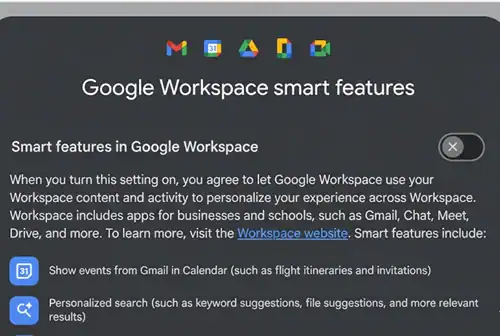
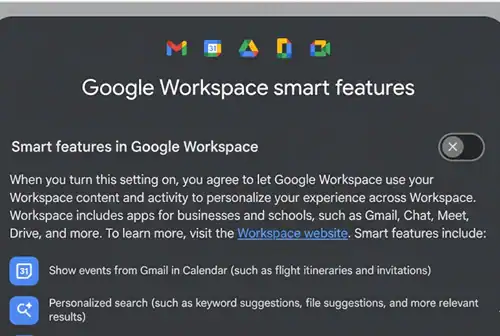
- Click Manage Workspace smart feature settings
- Toggle off Smart features in Google Workspace
- Toggle off Smart features in other Google products (optional, but recommended for complete removal)
- Click Save
Important: You need to turn off both toggles in the same location. The settings won’t work if you only disable one.
What this affects: With both toggles disabled, you’ll still be able to see the Gemini button and menus in certain apps, but they won’t do anything until you agree to re-enable smart features.
Turn Off Gemini in Google Photos
Google Photos has its own separate settings for AI features.
On Mobile
- Open the Google Photos app
- Tap your profile icon in the upper-right corner
- Select Google Photos settings
- Tap Gemini features
- Disable the Use Gemini in photos toggle
This removes features like Ask Photos, which lets Gemini search your photo library and suggest edits.
Disable Gemini in Google Chrome
Chrome has been one of the slowest to get Gemini integration. The feature is available for users above 18 years old in the US who use Chrome in English.
Steps to Disable
- Open Google Chrome
- Click the three-dot menu in the upper-right corner
- Select Settings
- Click AI innovations in the left sidebar
- Toggle off History search, powered by AI
- Toggle off Help me write
These settings control natural language search for your browsing history and generative writing tools.
Avoid AI Overviews in Google Search
AI Overviews now appear at the top of many search results. While you can’t permanently disable them, there’s a workaround:
Add “-ai” to the end of your search query. For example, search for “best laptops 2026 -ai” to see traditional results without the AI summary at the top.
This trick works on both mobile and desktop.
For Google Workspace Administrators
If you’re managing a Workspace account for your organization, you have additional controls, but accessing them can be complicated.
The ability to “manage access to Gemini features in Workspace services” is only available to “Enterprise Standard and Enterprise Plus” accounts. However, some have found that these settings can be “unlocked” even if they’re not on an Enterprise account by talking to Google Support.
To Access Admin Controls
- Contact Google Workspace support through the question mark icon in your admin dashboard
- Request that they enable the Gemini management settings
- Once enabled, go to Menu > Generative AI > Gemini for Workspace
- You can then disable Gemini for specific organizational units or your entire domain
What Happens When You Disable Gemini?
Here’s what changes in your Google experience:
| Feature | With Gemini On | With Gemini Off |
|---|---|---|
| Gmail writing assistance | AI-powered drafts and suggestions | Manual composition only, Smart Compose basic features still work |
| Google Photos search | Natural language queries (“show me sunsets from my vacation”) | Traditional search by date, location, people |
| Drive organization | AI-powered file summaries and organization | Manual file management |
| Docs/Sheets help | AI writing assistance, formula suggestions | Standard templates and help documentation |
| Calendar/Maps integration | Smart suggestions for events, travel | Manual entry only |
| Search results | AI Overviews at top of results | Traditional link-based results (with “-ai” trick) |
Troubleshooting Common Issues
| Problem | Solution |
|---|---|
| I still see Gemini features after turning them off | Log out and log back into your Google account; Open Gmail or Drive in an incognito/private window to verify settings; Wait 24 hours for changes to fully propagate across Google’s systems; Clear your browser cache and cookies |
| The settings menu doesn’t appear | Some Enterprise users find that the Workspace Admin Dashboard shows no option to turn off Gemini features. If you’re a Workspace admin and don’t see these options, contact Google Support to have them enabled |
| Changes won’t save | Make sure you’re clicking Save after making changes; Signed into the correct Google account; Using a web browser (not mobile app) for Workspace settings changes |
| I want to keep some features but not others | Unfortunately, Google doesn’t offer granular control. You’ll have to either disable or keep them all. The exception is Chrome, where you can toggle individual features separately |
Can You Re-enable Gemini Later?
Yes, absolutely. All these settings are reversible. You can re-enable Gemini by turning the setting back ON in Google Admin Console or through the same menus where you disabled it.
Your previous data and usage patterns aren’t deleted when you disable Gemini. If you turn it back on, the features will work immediately.
The Bottom Line
Gemini is being rolled out across the entire Google product line with amazing speed. Although these AI-driven elements can help amplify productivity for people, the fact that you’re able to disable them puts you directly in control of your digital experience.
It’s not the most elegant process, and settings are all over the place within various apps, but taking a few minutes to adjust makes Google apps come closer to working how you want them to. Whether it is for privacy, choice, or organizational demand, the decision is up to you.
Keep in mind that basic productivity tools such as spellcheck, simple autocompletion and your standard templates will keep working even if Gemini is disabled. You’re stripping out the A.I.-powered enhancements, not its core functionality.
Frequently Asked Questions
[xyultra_faq]
Read Also
Share this article

James David believes that an exceptional gaming experience starts with the right technical setup. Whether he’s fine-tuning Discord settings for smooth, lag-free streaming or tracking down the latest Roblox game codes, James specializes in bridging the gap between technology and play. He personally tests every software tool and Roblox feature to deliver honest, hands-on advice that helps players level up their digital lives without the stress of technical jargon.
View all articles
No comments yet
Be the first to start the conversation!