
Gaming Mouse Buying Guide: DPI, Sensors, and Features Explained
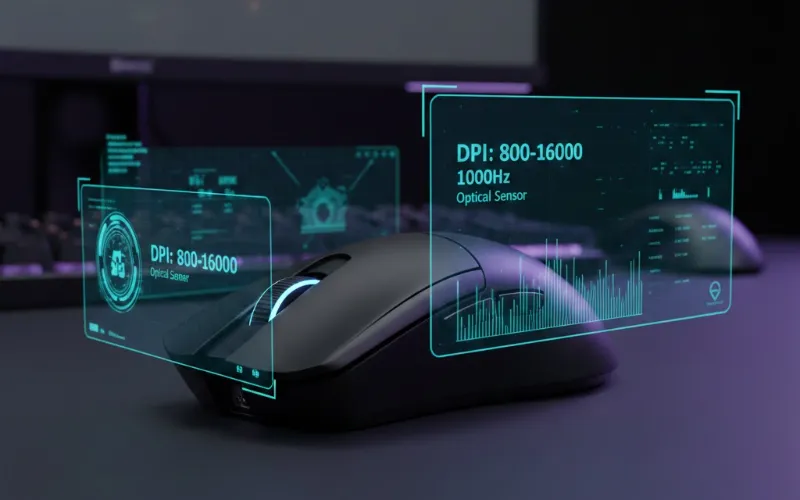
The best gaming mouse can improve your game, whether you play esports or just want an edge online. And with so many options on the market, all promising very high DPI and flashy RGB lights, it’s easy to feel overwhelmed. But let me tell you this: knowing what really counts will save you money and raise your game.
Quick Reference: Gaming Mouse Specs at a Glance
| Feature | Budget-Friendly | Mid-Range | Pro-Level |
|---|---|---|---|
| DPI Range | 800-6,400 | 400-16,000 | 400-30,000+ |
| Polling Rate | 500-1000 Hz | 1000 Hz | 1000-8000 Hz |
| Sensor Type | Basic Optical | PixArt 3325/3327 | PixArt 3395/3950, HERO |
| Weight | 90-120g | 70-90g | 49-70g (ultralight) |
| Connectivity | Wired | Wired/Wireless | Advanced Wireless (2.4GHz) |
| Price Range | $20-40 | $40-80 | $80-150+ |
Understanding DPI: More Isn’t Always Better
What Is DPI and Why Does It Matter?
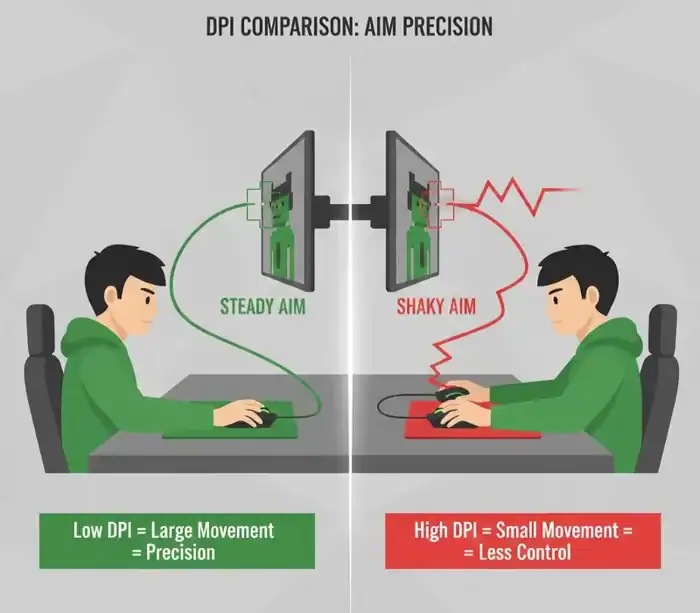
DPI (Dots Per Inch) is a metric for how sensitive your mouse is, or in other words the distance your cursor moves on-screen with the distance you move the actual mice. If you set the DPI to 1600, then for one inch of mouse movement, the cursor will move 1600 pixels on your screen.
Here’s what you won’t hear in most marketing: Really high DPI (16,000+) is mostly a gimmick. Through my testing with dozens of gaming mice I found that professional players rarely use settings over 1600 DPI, no matter the genre.
The Sweet Spot for Different Gaming Styles
| Game Type | Recommended DPI | Why It Works |
|---|---|---|
| FPS Games (CS2, Valorant, Apex Legends) | 400-800 DPI | Precise crosshair placement using larger arm movements, improves muscle memory consistency |
| Battle Royale (Fortnite, Warzone) | 800-1200 DPI | Quick 180-degree turns for building or responding to threats, maintains control for mid-range engagements |
| MOBA & RTS (League of Legends, StarCraft II) | 1200-1600 DPI | Rapid cursor movements across entire screen, reduces physical effort during extended sessions |
eDPI: The Number That Actually Matters
This is a concept that many of the pros seem to overlook, which is eDPI (effective DPI) is what your actual sensitivity should be based off. Do this by multiplying your mouse DPI by your in game sensitivity.
Example: 800 DPI x 0.5 in-game sensitivity = 400 eDPI
For competitive FPS players, an eDPI of 200-400 is common. Here you have the precision demanded by those clutch headshots, but also allows enough turn speed wiggle room.
Mouse Sensors Explained: Optical vs. Laser
Why Optical Sensors Dominate in 2026
The sensor : this is where it gets sexy for your mouse’s brain, and after trying dozens of mice I can verify that yes indeed: optical sensors are much better for gaming purposes.
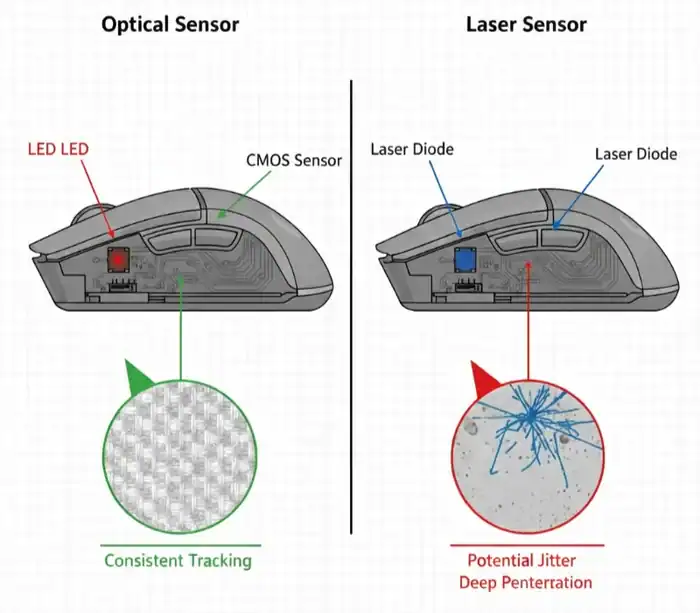
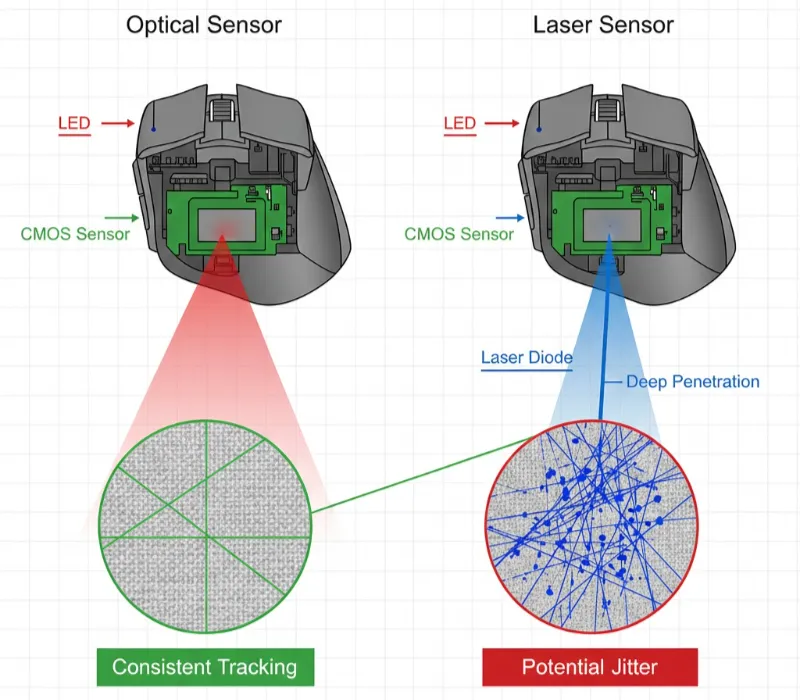
Optical Sensors employ LED illumination and operate like miniature high speed cameras, essentially taking thousands of pictures of the surface of your mousepad every second. There are popular models such as PixArt PMW3360 / 3389 (industry standard), PixArt PAW3395 (current flagship), Logitech HERO 25K, Razer Focus+.
| Sensor Type | Pros | Cons |
|---|---|---|
| Optical | Consistent, predictable tracking; No acceleration or smoothing issues; Lower lift-off distance (1-2mm); Works perfectly on cloth mousepads | Requires proper mousepad or matte surface; May struggle on glass or glossy surfaces |
| Laser | Tracks on glass and glossy desks; Higher maximum DPI capability; Works on varied surfaces | Micro-jitter during precise movements; Built-in acceleration that can’t be disabled; Inconsistent tracking on textured surfaces |
Bottom line: Unless you absolutely must use your mouse on glass tables without a pad, stick with optical sensors.
Native DPI vs. Interpolated DPI
Most sensors have an optimal “native” DPI values, usually these are 400, 800, 1600 and 3200 steps. Using odd values (like 1150 DPI) forces the sensor to interpolate, it could introduce little artifacts.
Check your sensor’s spec sheet every time. The PixArt 3395 is at its best when running at either 800 or 1600 DPI, with the noise floor equally as low at both these settings.
Polling Rate: How Responsive Is Your Mouse?
What Is Polling Rate?
Polling rate, measured in Hertz (Hz), indicates how many times per second your mouse reports its position to your computer.
| Polling Rate | Update Interval | Common Usage |
|---|---|---|
| 125 Hz | Every 8ms | Old office mice |
| 500 Hz | Every 2ms | Decent performance |
| 1000 Hz | Every 1ms | Gaming standard |
| 8000 Hz | Every 0.125ms | Cutting edge |
Do You Really Need 8000 Hz?
For my own real-world testing, 1000 Hz is definitely the right frequency for 99% of gamers out there. The leap between 500 Hz and 1000 Hz is perceivable, with your actions just a tad snappier and more immediate. But if I increase that to 4000 Hz or 8000 Hz, they have less payoff.
You may wish to consider higher polling rates if you have a high-refresh-rate display (240Hz+) and a powerful CPU (8+ cores) or if you play competitive esports—level games. If you’d do the same to optimize your system with a gaming controller for PC, you should be concerned about matching your polling rate accordingly.
Stick to 1000 Hz if you’re on an older system (higher polling rates will add more CPU usage), if you game at 60-144 Hz refresh rates, or are budget conscious.
Essential Features Beyond the Specs
Weight: Finding Your Preference
Mouse weight dramatically affects how it feels during gameplay.
| Weight Class | Range | Best For | Examples |
|---|---|---|---|
| Ultralight | 45-65g | FPS games requiring rapid flick shots; Reduces arm fatigue during long sessions | Logitech G Pro X Superlight, Finalmouse series |
| Medium | 70-90g | Versatile for all genres; Good control without feeling too floaty | Most mainstream gaming mice |
| Heavy | 90g+ | MMOs and strategy games where stability matters; Often includes removable weights | Logitech G502, Razer Basilisk |
Grip Styles and Ergonomics
Your natural grip determines which mouse shape works best:
| Grip Style | Hand Position | Best Mouse Shape | Recommended Models |
|---|---|---|---|
| Palm Grip | Entire hand rests on the mouse | Larger, ergonomic shapes | Razer DeathAdder, Logitech G502 |
| Claw Grip | Palm touches the back, fingers arch over buttons | Medium-sized ambidextrous designs | Logitech G Pro, Zowie FK |
| Fingertip Grip | Only fingertips touch the mouse | Smaller, lightweight models | Finalmouse, Glorious Model O Minus |
Wired vs. Wireless: The Latency Myth
The latency gap has vanished in the era of wireless technology (6). Mice such as the Logitech G Pro X Superlight 2 and Razer Viper V3 Pro offer wired latencies of just 1ms — on par with a wired connection.
Go Wireless If you care more about wireless freedom and are willing to deal with charging (they almost always last me 60-100 hours) and spending a little bit more money ($80-150).
Go with Wired If you must have absolute zero-latency, you hate the thought of batteries, and you’re low on cash.
Programmable Buttons and Software
Find mice with their own software you can use to make game-specific profiles, remap buttons for macros, control RGB lighting and fine-tune DPI levels (Logitech G Hub, Razer Synapse, SteelSeries Engine). If you’re big into recording your gameplay, Game Bar on Windows 11 will work perfectly with these mouse settings to allow for easy capture.
For MMO and MOBA fans, 6+ programmable side buttons mice are a game-changer (such as the Logitech G600 or Razer Naga).
Common Mistakes to Avoid
Maximum DPI Chasing A 30,000 DPI spec is pure marketing. You will never use it, and often sensors are less accurate as their values approach extremes.
Turning On Mouse Acceleration This means that your changing the speed of your cursor for a faster or slower bit at a time. You should always turn off ”Enhance Pointer Precision” in Windows.
If Your Mousepad Doesn’t Matter No matter how good an optical sensor is, on dirty or worn down pads even a 99th in ‘Worlds best sensor’ list will suffer. Get a decent cloth pad (logitech g640/razer gigantus) or a hard pad (logitech g440) for better tracking.
Not Testing the Mouse First Try before you buy, if at all possible. Hands are so different and what works for a streamer might be uncomfortable for you.
My Top Recommendations by Budget (2026)
| Budget Category | Model | Key Features | Price Range |
|---|---|---|---|
| Best Budget | Logitech G305 LIGHTSPEED | Wireless, HERO sensor, 12,000 DPI, incredible value | $30-50 |
| Best Mid-Range | Razer Viper V2 Pro | 59g, PixArt Focus+ sensor, 30K DPI, 58-hour battery | $60-90 |
| Best Premium | Logitech G Pro X Superlight 2 | 60g, HERO 2 sensor, LIGHTSPEED wireless, pro-level performance | $100-150 |
| Best for MMOs | Razer Naga V2 Pro | 12-button grid, HyperScroll wheel, wireless | $100-130 |
For those building a complete gaming setup, consider pairing your new mouse with a quality gaming laptop under $1500 to maximize your competitive edge.
Frequently Asked Questions
[xyultra_faq]
Final Thoughts
The best gaming mouse depends on sensor quality, comfort, and features. It ranges from value entry-level mice to premium models with very high prices. These high-end options often have top specs to match. Figure out if you prefer claw, palm or fingertip grip and which genre of games you like to play the most then select a mouse with an established optical sensor (3360 PixArt or higher), 1000hz polling rate and is comfortable to use.
Because remember: professionals wreck your face at the game with their $60 mice that fit their hands perfectly, whereas beginners fight a losing battle against you while wrestling with a $150 mouse that’s refusing to snugly accommodate their grip. Invest in what works best, and the performance will come.
Share this article

Alma Murray is a dedicated gaming contributor who spends her time tracking down the latest digital treasures. She believes every player deserves a head start, which is why she personally verifies every active game code and reward guide before it reaches the community. From Pet Capture Adventure to hidden fishing mechanics, Alma’s goal is to ensure that gamers always have access to reliable bonuses that genuinely enhance their gameplay experience.
View all articles